
In Progress Tab - Desktop
Overview
Once work order has been accepted the task moves to the "In Progress "tab. From here, the admin/supervisor can assign to the chosen employee, schedule visit, and select visit type by viewing the details. When assigned, techs can upload photos, videos, and documents for each visit. Tasks will appear in order of the date scheduled, soonest to latest. You have the ability to view information such as work order number, location, service category, upcoming visit date, due date, search work orders and view status. Lastly, you have the option to sort on each of the individual tabs from ascending to descending order.
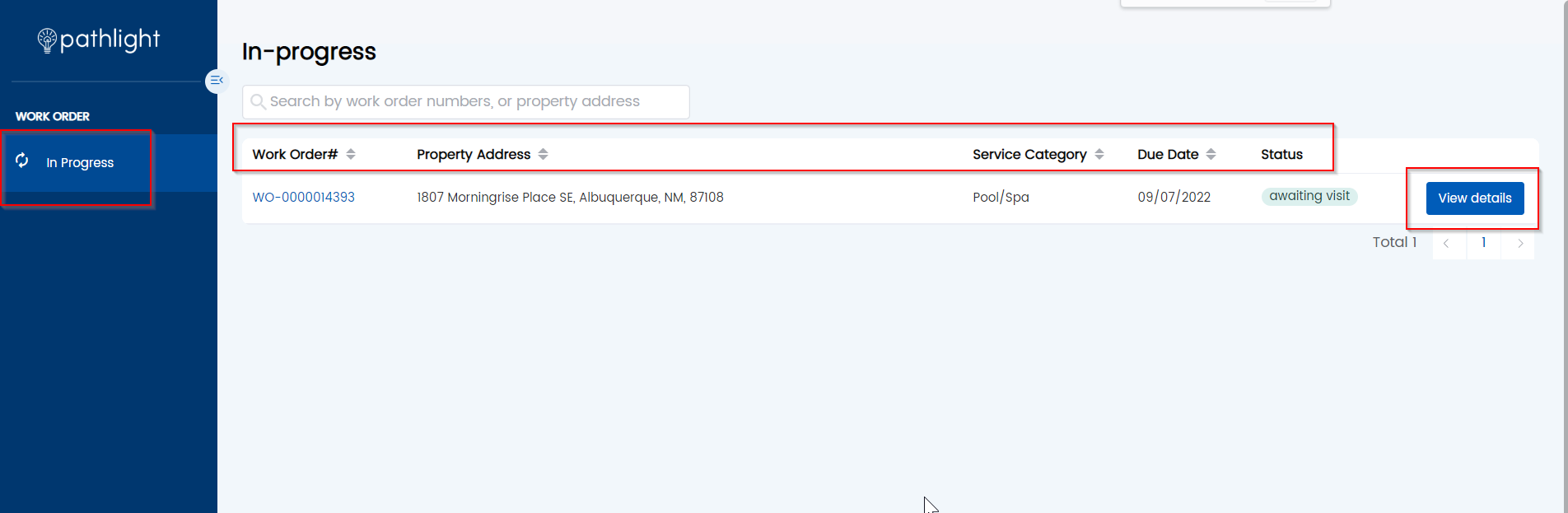

Work Order Statuses
- Ready to Schedule -New work orders that were just moved to the in-progress tab and haven’t been scheduled.
- Awaiting Schedule - Work orders that are scheduled, and awaiting technician to visit
- Pending Bid Approval- Work orders that have bids pending Pathlight approval
- Bid Declined- Work orders with bids that were declined by Pathlight and where vendors haven’t taken any actions (either provide a new bid or accept budget)
- Bid Approved- Work Order with bids that have been approved. This status will stay until users take another action (such as scheduling visit, submit new bid, mark as complete)
- In Progress- Work orders that don’t have any upcoming visits scheduled, but that had previous visits
- Quality Review- Work orders that are marked as completed, but are undergoing a review from our resident service team

In Progress Tab - Mobile
Overview
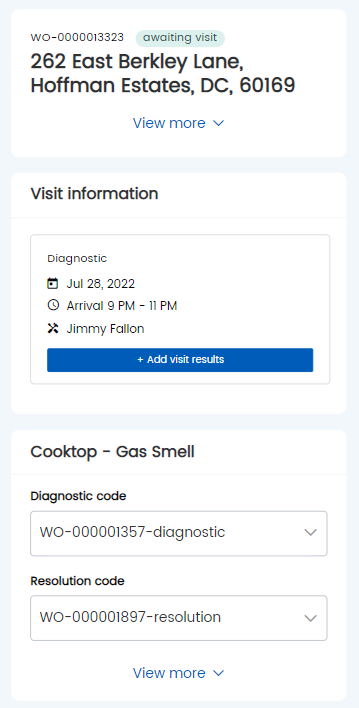
Technicians can only complete visits on the mobile device, the desktop version does allow for a work order to be completed but should be reviewed by the admin/supervisor first.


Comments
0 comments
Article is closed for comments.